| Here is some information you will need to have
handy to setup your email client.
Mail Server names:
Both incoming (POP3 or IMAP) and outgoing (SMTP) mail servers are mail.netplex.net.
Username and Password:
Usually NETPLEX
customer's usernames will be the first part of your email
address. So if your email address is "yourusername@netplex.net",
just use your username NOT your whole email address.
SETUP
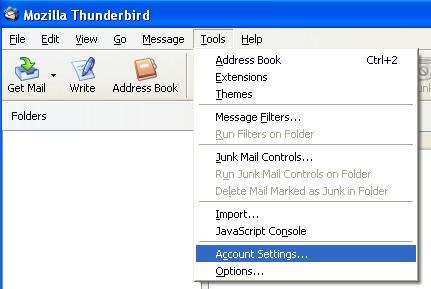
- Once you have Thunderbird open, click on Tools in the top menu,
and go to Account Settings.
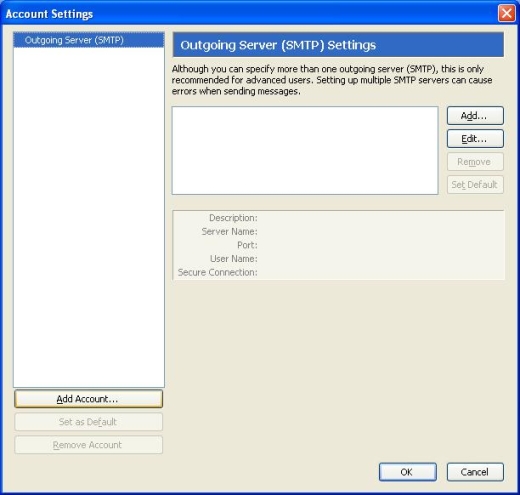
- Once you get to the Account Settings window, click on the Add
Account button at the bottom left.
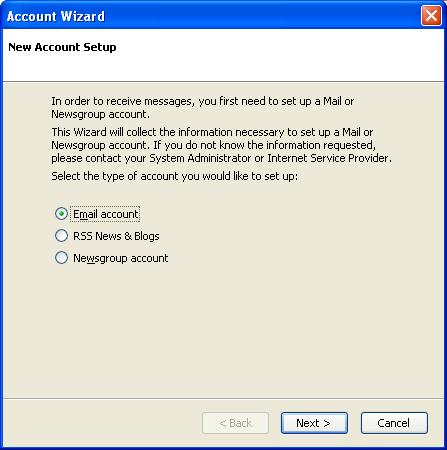
- Now you will see the Account Wizard.
- Choose Email account.
- Click
on Next.
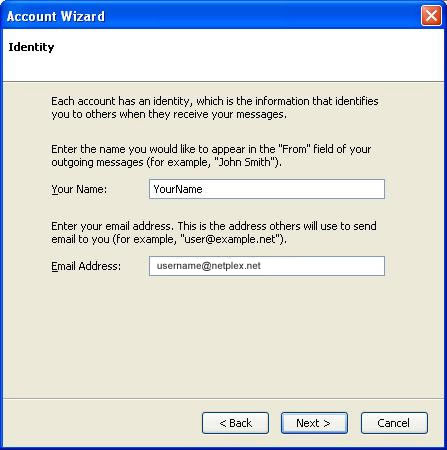
- For Your Name, fill in how you would like
your name to appear when sending mail.
- For Email Address, fill
in your full e-mail address.
- Click on Next.
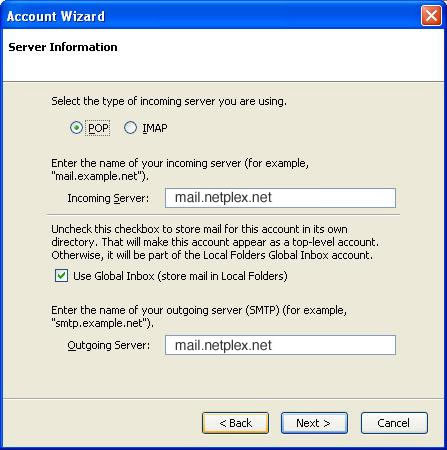
- For the type of incoming mail server, select
POP by placing the green dot next to it.
- Fill in the Incoming
Server, and Outgoing server in all lower case letters. (mail.netplex.net
for both)
- If you are
using only one e-mail account, then place a check next to Use Global
Inbox, or if you would like your email from multiple accounts going
to the same inbox. If not, remove the check.
- Click on Next.
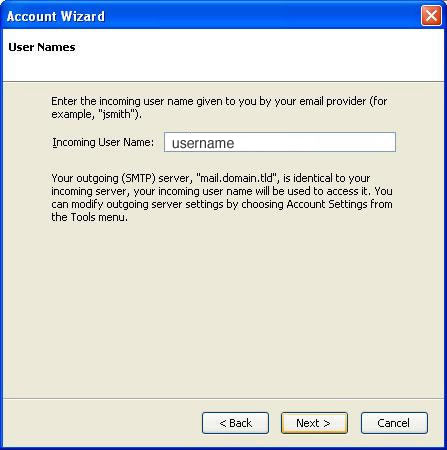
- Fill in your username in the Incoming User
Name field.
- Click on Next.
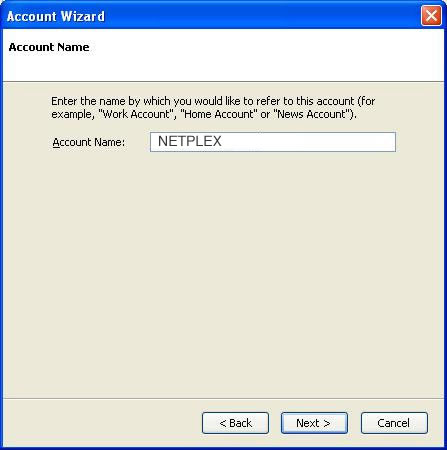
- The Account Name field should already be populated
with your email address.
- Click on Next.
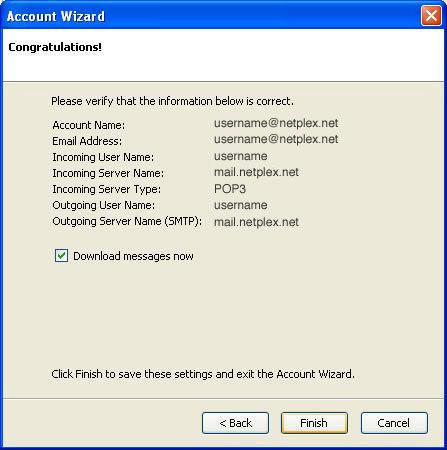
- This last screen give you a chance to recheck your settings.
If the settings are ok, go ahead and click on Finish.
- Thunderbird will ask you for your password the first time you
attempt to login. You can choose to have Thunderbird remember your
password then.
|

















